
Transaction Dashboard
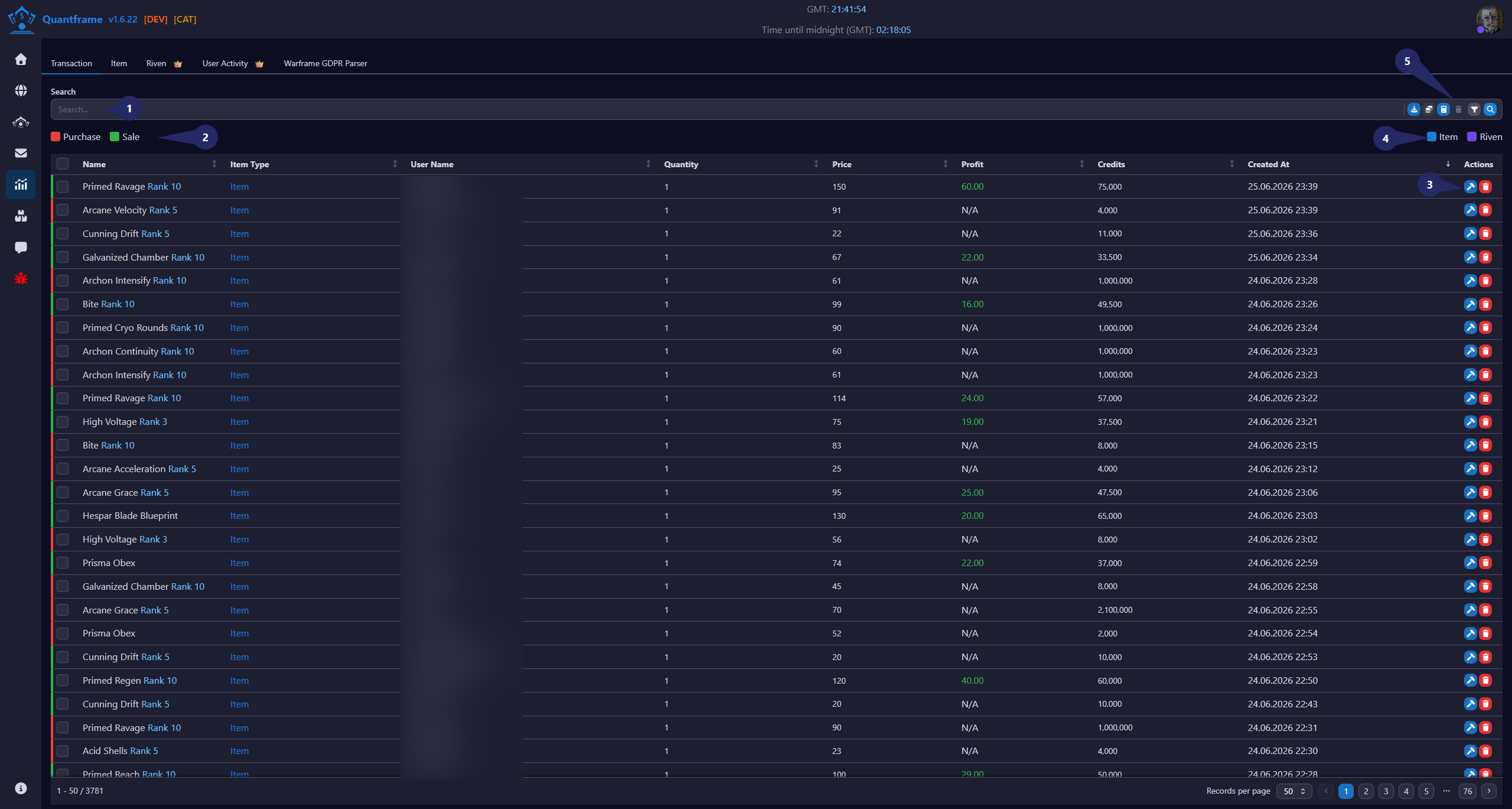
View and analyze all your completed transactions in one place. The Transaction History page provides a detailed log of every trade you've made.
1. Search Transactions
Use the search bar to quickly locate transaction records.
Features
- Search by item name.
- Search by username.
- Instant filtering as you type.
- Works across all transaction types.
2. Transaction Type Filter
Filter the transaction list based on its type.
Available Filters
- 🟥 Purchase – Displays purchased items only.
- 🟩 Sale – Displays sold items only.
Purpose
Allows users to quickly switch between purchase and sale history.
3. Transaction Actions
Each transaction provides quick management actions.
Available Actions
| Icon | Function | Description | Requires Patreon |
|---|---|---|---|
| Edit transaction | Edit individual transaction | ||
| Delete transaction | Delete individual transaction |
4. Display Filters
Additional filters for narrowing displayed records.
Available Options
📘 Item
- Display only item transactions.
🟪 Riven
- Display only riven transactions.
Purpose
Quickly isolate specific transaction categories.
5. Search Button's
Additional tools for managing the transaction table.
Actions
| Icon | Function | Description | Requires Patreon |
|---|---|---|---|
| Export | Export transaction data | ||
| Show Report | Display transaction report | ||
| Calculate | Calculate totals and statistics | ||
| Delete | Delete selected transactions | ||
| Filter | Toggle advanced filter panel |
Transaction Table
The table contains the following information for every transaction.
| Column | Description |
|---|---|
| Name | Item name |
| Item Type | Item or Riven |
| User Name | Buyer or seller |
| Quantity | Quantity traded |
| Price | Price per item |
| Profit | Profit earned from the transaction |
| Credits | Total credits exchanged |
| Created At | Transaction timestamp |
| Actions | Edit or Delete |
Workflow
- Use the search bar to locate a transaction by item or user.
- Choose Purchase or Sale to display the desired transaction type.
- Browse the transaction table to inspect pricing, profit, and credits.
- Use the Item or Riven filters to narrow the displayed records.
- Use the toolbar or row action buttons to refresh, export, edit, or delete transaction records.