
Chat Dashboard
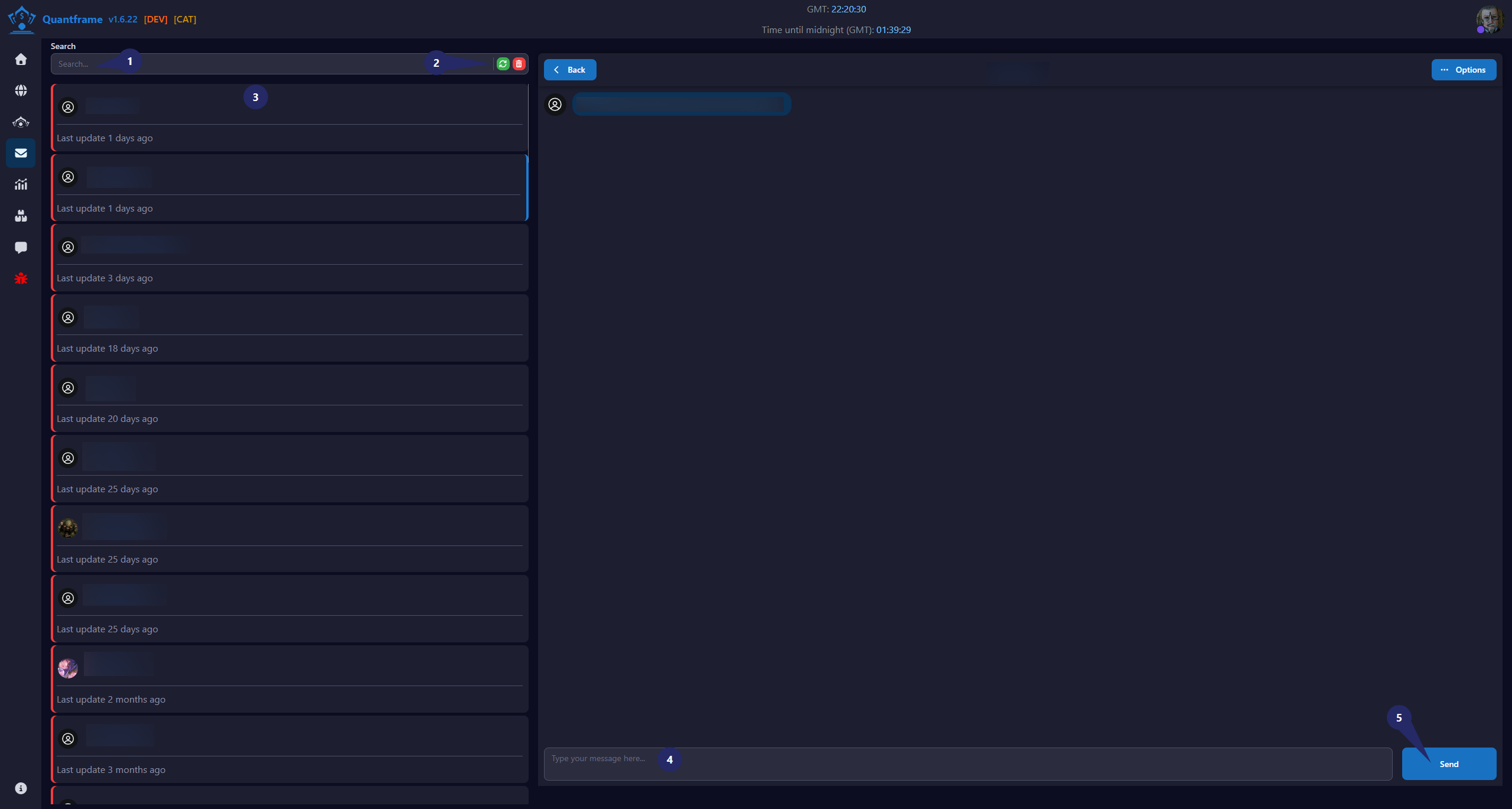
Chat allows you to communicate with other traders directly through QuantFrame. Search conversations, manage your inbox, and send messages in real time.
1. Search & Filter Section
Use the search bar to quickly locate conversations.
Features
- Search by username or conversation name.
- Real-time filtering of conversation results.
- Helps locate active and historical chats.
Location
Top-left section above the conversation list.
2. Search Button's
Quick actions for managing conversations.
Actions
| Icon | Function | Description | Requires Patreon |
|---|---|---|---|
| Refresh | Refresh the conversation list | ||
| Remove | Remove or clear selected conversations |
3. Conversation List
Displays all available conversations.
Information Shown
- User avatar.
- Username or contact name.
- Last update timestamp.
- Conversation status indicator.
Features
- Click a conversation to open it.
- Selected conversation is highlighted.
- Recent conversations appear at the top.
4. Message Composer
Used to create and send messages.
Features
- Multi-line message input field.
- Supports manual message entry.
- Positioned at the bottom of the chat window.
- Ready for future enhancements such as templates or attachments.
Usage
- Select a conversation.
- Type a message in the input field.
- Click Send.
5. Send Message Button
Executes message delivery to the selected conversation.
Features
- Sends the current message.
- Works with the selected chat session.
- Located beside the message input field.
Workflow
- Select a conversation from the list.
- Enter a message.
- Click Send.
- Message appears in the conversation thread.
- Conversation updates automatically.
Workflow
- Search for a conversation using the search bar.
- Select a conversation from the conversation list.
- Type your message in the composer input field.
- Click the Send button to deliver the message.