
Trade Messages Custom Dashboard
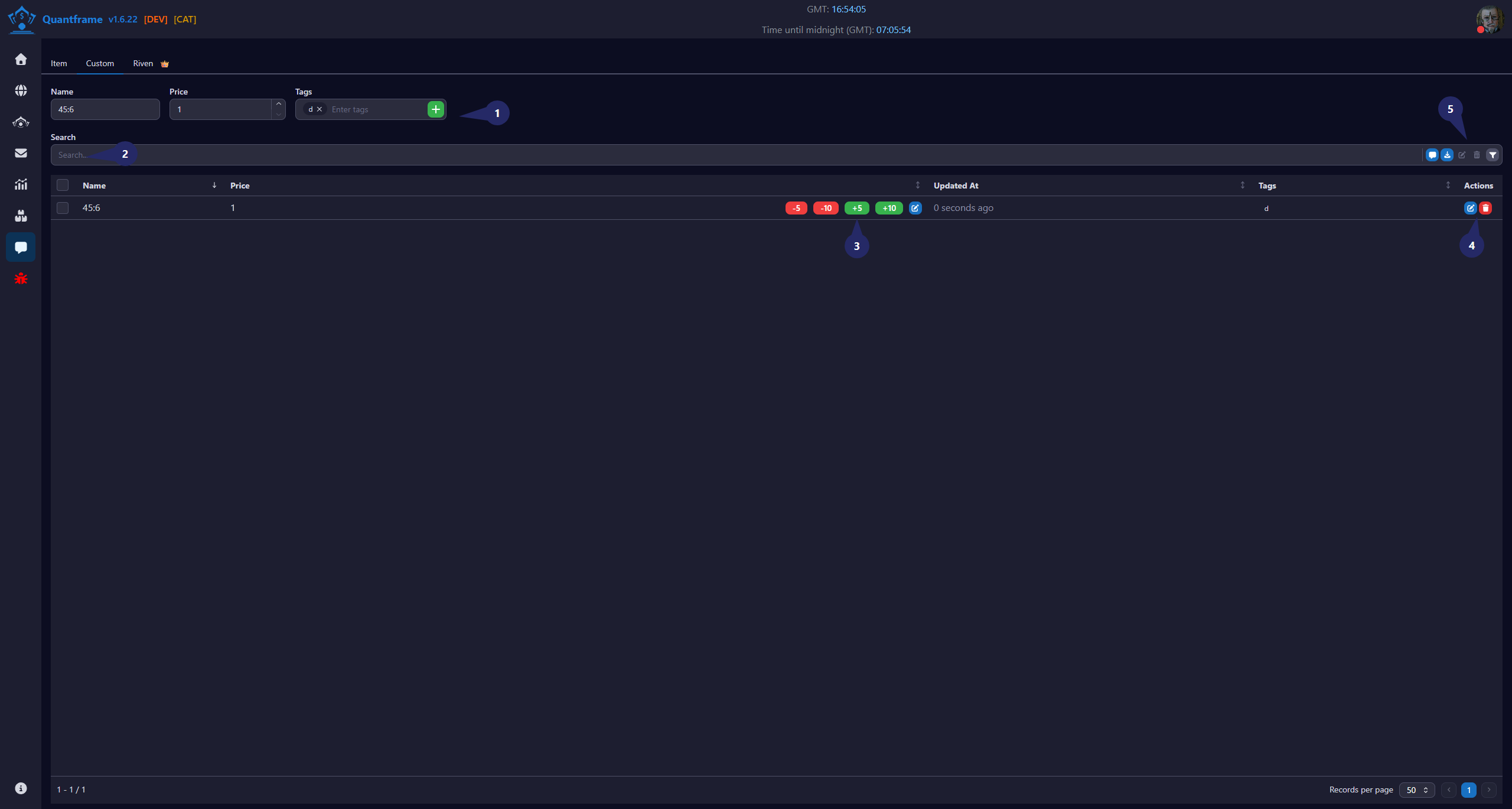
The Custom trade messages view allows you to filter conversations using your own criteria. Create custom filters to organize your trade messages exactly how you want.
1. Add New Item Section
This section is used to add an item to the stock tracking system.
2. Search
Use this area to quickly find item to add to the trade message.
Features
- Search by item name.
3. Price Management Controls
Allows quick adjustment of price for the item in the trade message.
Actions
- -5: Decrease price by 5
- -10: Decrease price by 10
- +5: Increase price by 5
- +10: Increase price by 10
- Edit Icon: Manually set a custom price
4. Item Action Controls
Available actions for each item record.
Actions
| Icon | Function | Description |
|---|---|---|
| Edit item | Edit the details of the selected item | |
| Delete item | Delete the item from the inventory and the market |
5. Search Button's
Available actions for the item table.
Actions
| Icon | Function | Description | Requires Patreon |
|---|---|---|---|
| Generate Message | Generate a trade message for selected item | ||
| Export JSON | Export items to JSON | ||
| Edit | Edit the details of the selected item | ||
| Delete | Delete the item from the inventory | ||
| Filter | Filter items in the table |
Usage
Manage individual stock entries directly from the table without opening additional pages.
Workflow
- Select an item and enter quantity/purchase data.
- Click the Add (+) button.
- Monitor overall statistics in the dashboard summary.
- Adjust minimum prices using quick pricing controls.
- Manage individual listings using the action buttons.